9 min read
How to OCR a Handwritten PDF: A Step-by-Step Guide
Learn how to OCR a handwritten PDF, improve scanned pages, preserve page order, review uncertain text, and export an accurate transcription.
On this page
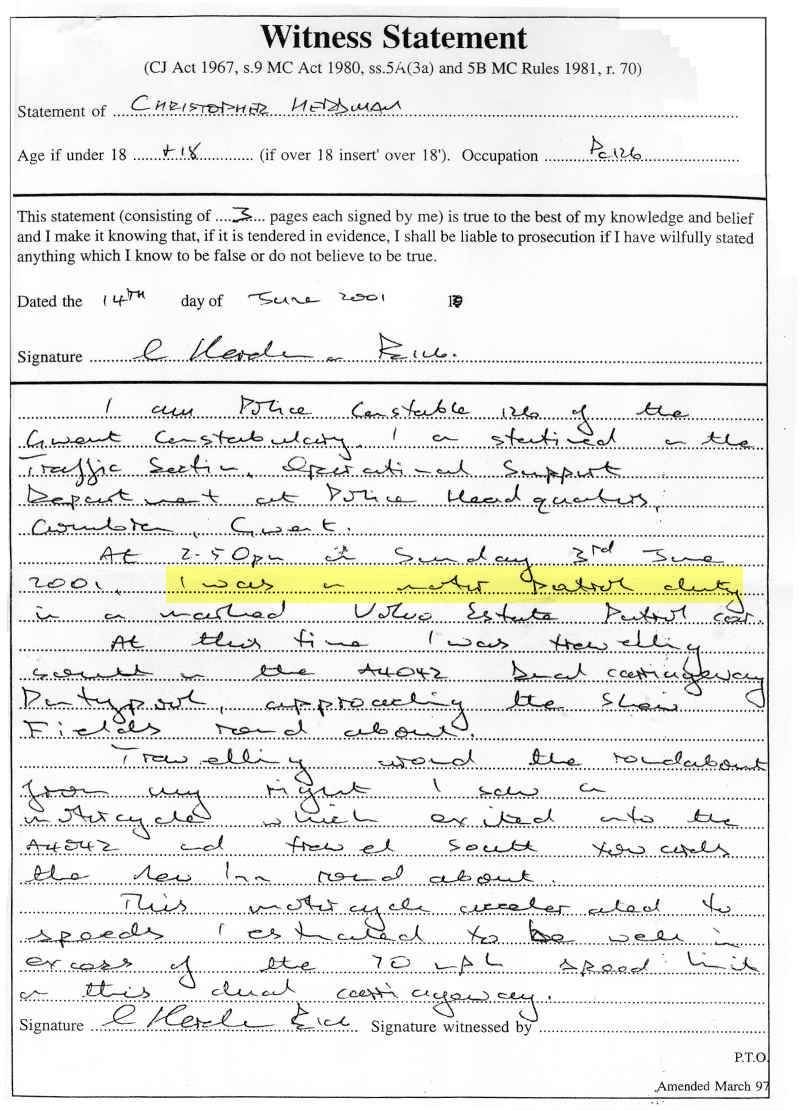
To OCR a handwritten PDF, use handwritten PDF OCR, upload the complete PDF, process its pages in sequence, and compare the OCR text with the original scan. Start with a straight, high-resolution PDF because blur, page rotation, shadows, and heavy compression can hide the strokes needed to distinguish similar letters. Treat the OCR result as an editable first draft, then verify names, dates, numbers, and uncertain words before exporting it.
Why ordinary OCR struggles with handwritten PDFs
A PDF is only a container. Some PDFs contain selectable digital text, while a scanned handwritten PDF contains page images. Printed-text OCR expects regular fonts, predictable spacing, and clearly separated characters. Handwritten text breaks those assumptions: letters join, the same character changes shape, words lean across the baseline, and personal abbreviations interrupt normal language patterns.
Document quality adds another layer. A page photographed near a book spine may curve; faint pencil can blend into gray paper; handwritten ink from the reverse side can show through. Handwritten PDF OCR therefore has two jobs: recover a usable image from each page and OCR irregular writing without losing page order.
Image-only pages
A scanned PDF may contain no searchable OCR text layer, even though the handwritten text is visible.
Variable letterforms
Cursive joins, handwritten print, and mixed styles require handwriting OCR, not printed-font matching.
Page-level defects
Rotation, blur, shadows, folds, and bleed-through can affect different pages in the same file.
Document structure
Headings, page breaks, lists, tables, and carry-over sentences must be reviewed across pages.
Prepare a handwritten PDF for OCR
Good preparation prevents avoidable OCR errors. Open the PDF and inspect several pages at full size. Confirm that the handwritten text remains sharp when enlarged, every page is upright, and no line has been cut off. Remove accidental blank pages, duplicates, and unrelated covers, but keep meaningful page numbers and margins. If pages belong to one notebook, letter, or record, preserve their original order.
| PDF problem | Best correction | Why it matters |
|---|---|---|
| Sideways page | Rotate it before OCR and save the corrected PDF. | Correct orientation helps preserve lines and reading order. |
| Low-resolution scan | Rescan from the source when possible instead of enlarging pixels. | Upscaling cannot recreate letter details that were never captured. |
| Dark edge or shadow | Crop outside the writing area and use more even lighting. | Strong borders can be mistaken for columns or reading boundaries. |
| Faint pencil or ink | Raise contrast gently while keeping thin strokes visible. | Aggressive filters may erase punctuation and light letter joins. |
| Mixed page sizes | Keep the content centered and check that no margins are clipped. | Names and notes are often written close to page edges. |
Do not flatten away the evidence
How to OCR a handwritten PDF step by step
The following workflow uses the handwritten PDF to text converter. This handwritten PDF OCR workflow keeps one document together so its source pages and transcriptions remain in the same order.
1. Upload the handwritten PDF
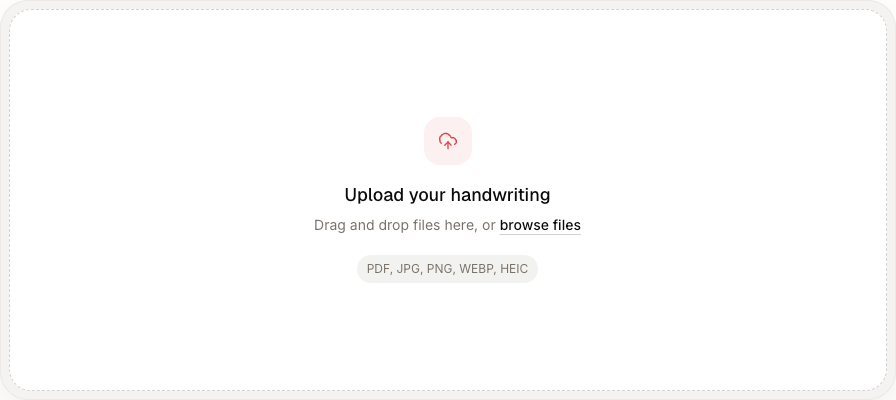
Drag one complete handwritten PDF into the upload area, or select browse files. A PDF must be uploaded alone rather than mixed with separate images. Before starting OCR, confirm that every handwritten page is present, upright, readable, and in the intended sequence.
2. Run handwritten PDF OCR
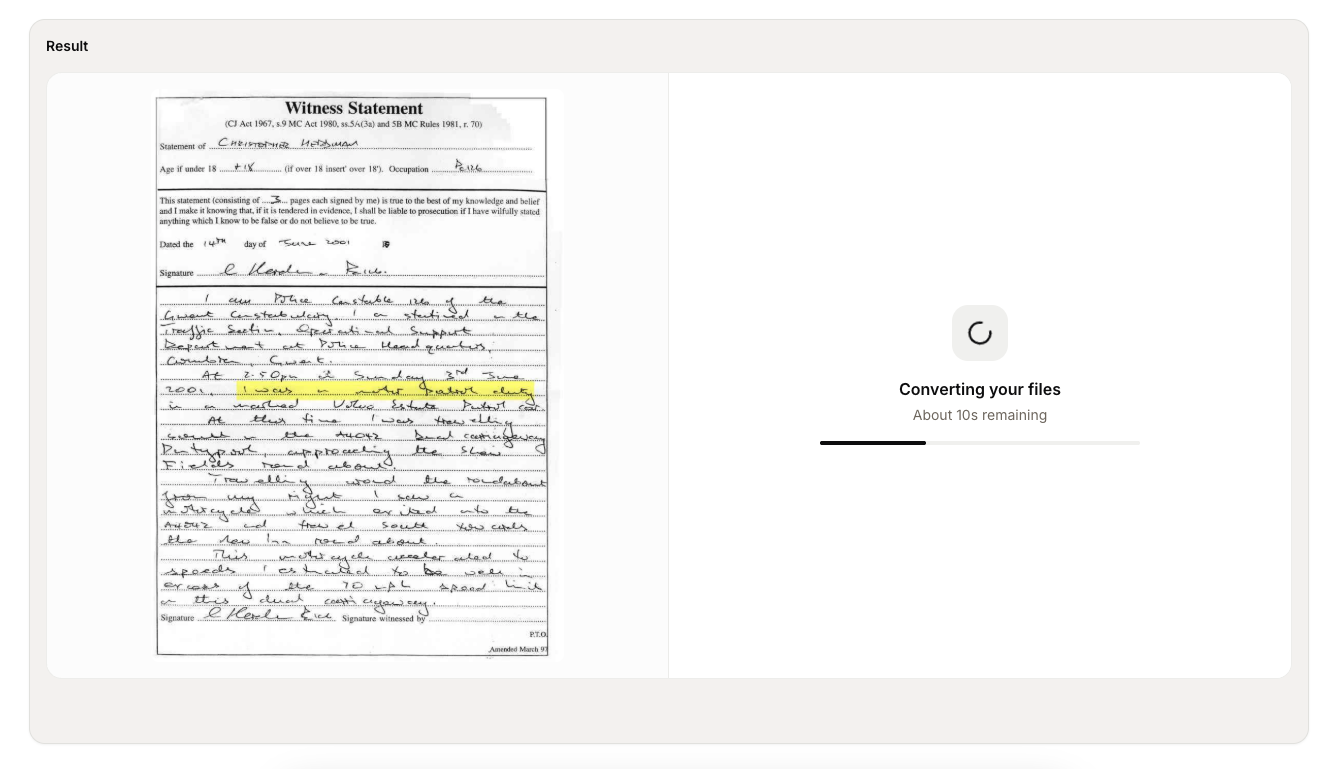
Wait for the handwritten PDF preview, then select Convert. Keep the browser tab open while OCR processes every PDF page. Processing time depends on the number and complexity of handwritten pages. The result workspace keeps the PDF source beside the OCR progress until the transcription appears.
3. Review the handwritten PDF OCR result
Compare each OCR transcription with its corresponding handwritten PDF page. Check page order, missing lines, names, dates, numbers, and repeated letter errors before exporting. If handwritten text remains uncertain, mark it instead of forcing the OCR output into a confident guess.
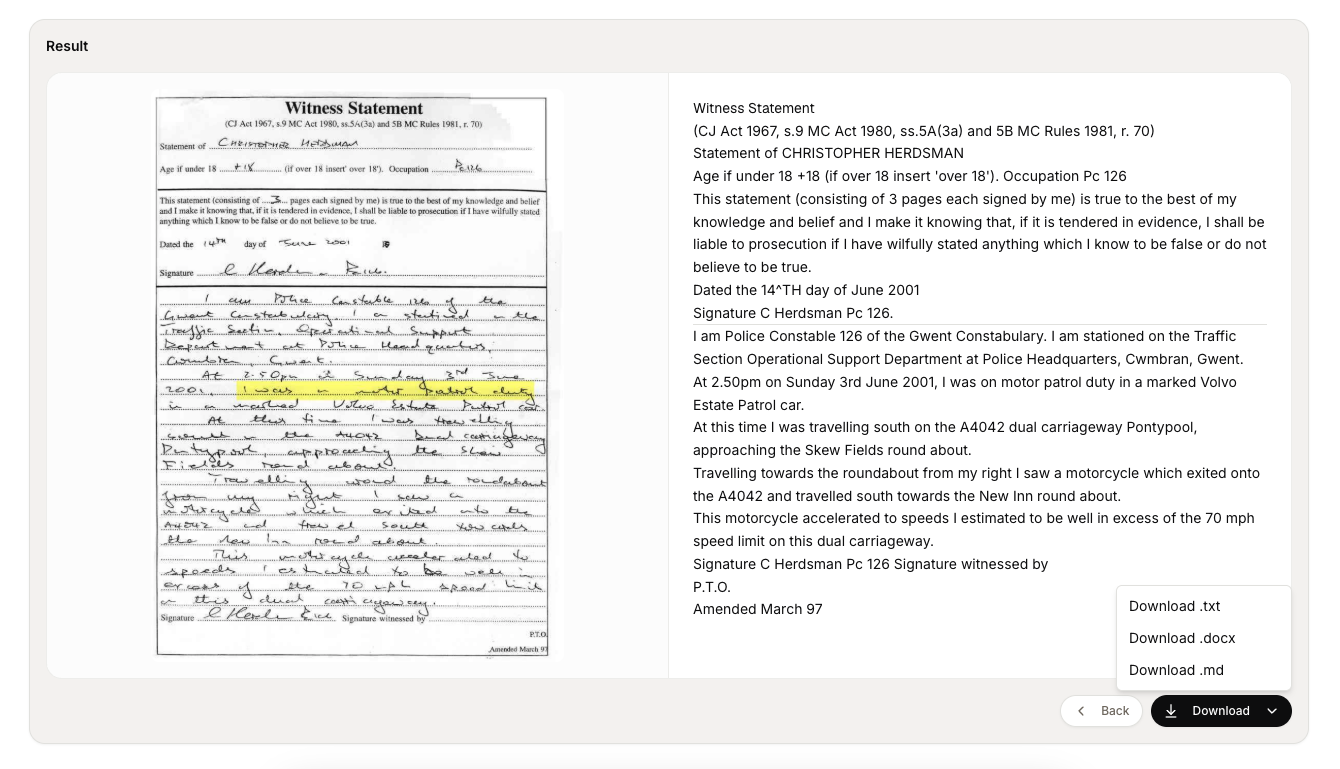
Review handwritten PDF OCR page by page
Begin with structural checks. Confirm that every PDF page has OCR text, paragraphs appear in a sensible order, and headings have not been merged into body text. For a sentence that continues onto the next page, read both pages together. Tables, marginal notes, arrows, and multi-column layouts deserve separate attention because their meaning depends on position as well as words.
Next, correct high-risk details. Names and place names may be absent from the OCR vocabulary. A single wrong digit can change a date, amount, dosage, measurement, or record identifier. Compare repeated letter shapes throughout the handwritten PDF and use the writer's clearer examples to resolve harder ones. If the handwritten source does not support one reading, mark the uncertain letters rather than silently guessing.
Handwritten PDF review checklist
- All pages are present and remain in the correct order
- Headings, paragraphs, lists, and page breaks survive OCR
- Names, dates, quantities, addresses, and identifiers match the scan
- Crossed-out text and later insertions are represented clearly
- Tables, columns, arrows, and marginal notes retain their relationships
- Unreadable words are marked instead of replaced with unsupported guesses
Export the handwritten PDF as usable text
Choose the export format according to what happens next. TXT is useful for plain searchable text. Markdown preserves lightweight headings and lists. Word is practical when the transcription needs editorial review, comments, or a familiar document layout. When handwritten PDF OCR identifies a genuine table, Excel or CSV can make rows and columns easier to reuse, but the structure should still be checked against the source.
Keep the original PDF beside the corrected OCR text and use matching filenames or page labels. This creates a traceable record: future readers can return to the precise source page when a name, quotation, or number is questioned. OCR makes a handwritten PDF searchable and editable, but the scan remains the authoritative visual reference.
- Use TXT for simple search, indexing, or plain-text archives.
- Use Markdown for structured notes and knowledge bases.
- Use Word for collaborative correction and formatted documents.
- Use spreadsheet formats only after table relationships are verified.
Ready to process a document?
Turn a handwritten PDF into editable text
Upload a multi-page PDF, review each OCR transcription beside its source page, and export the corrected result.
Frequently asked questions
- Can OCR recognize handwriting in a scanned PDF?
Yes. Handwritten PDF OCR can process pages that contain cursive, print, or mixed handwritten text. A sharp scan with good contrast usually produces a more reliable draft than a compressed or skewed page.
- How do I extract handwritten text from a PDF?
Upload the PDF to a handwriting-focused OCR tool, process its pages in order, and compare the OCR text with each source page. Correct important details before copying or exporting the transcription.
- Can I OCR a multi-page handwritten PDF?
Yes. Keep related pages in one PDF when page order matters. Review the OCR output page by page so missing pages, rotated scans, names, numbers, and carry-over sentences can be checked against the original document.
- Why does ordinary PDF OCR fail on handwritten pages?
Traditional OCR is often optimized for consistent printed fonts. Handwritten text varies by writer, joins letters, changes spacing, and may include corrections or faded strokes, so it needs a recognition workflow designed for handwritten text.
- Which formats can I export after handwritten PDF OCR?
Cursive Reader supports TXT, Markdown, and Word downloads for regular transcriptions. OCR table results can also provide structured spreadsheet formats such as Excel or CSV.
Help with difficult words and notes
If the PDF is sharp but individual words remain difficult, use the worked example of comparing repeated handwritten words before accepting an OCR guess. For notebook pages with headings, shorthand, and side notes, follow the handwritten notes guide.