6 min read
How to Convert a Handwritten Table to Excel
Convert a handwritten table to Excel from a photo or scan. Check column alignment, blank cells, identifiers, and totals before downloading the spreadsheet.
On this page
Converting a handwritten table to Excel has two jobs: reading the writing and keeping each value in the correct row and column. Upload a clear image, inspect the recognized table, correct uncertain entries, then export an Excel file. A readable paragraph of extracted text is not enough when the relationships between cells carry the meaning.
Photograph the handwritten table clearly
Photograph the handwritten table straight on, with even lighting across the grid. Include the column headings, units, first handwritten row, and final total. A crop that removes the leftmost identifier can make later rows impossible to match. If a spread crosses a book spine, capture each page clearly and keep an overview showing how the two pages relate.
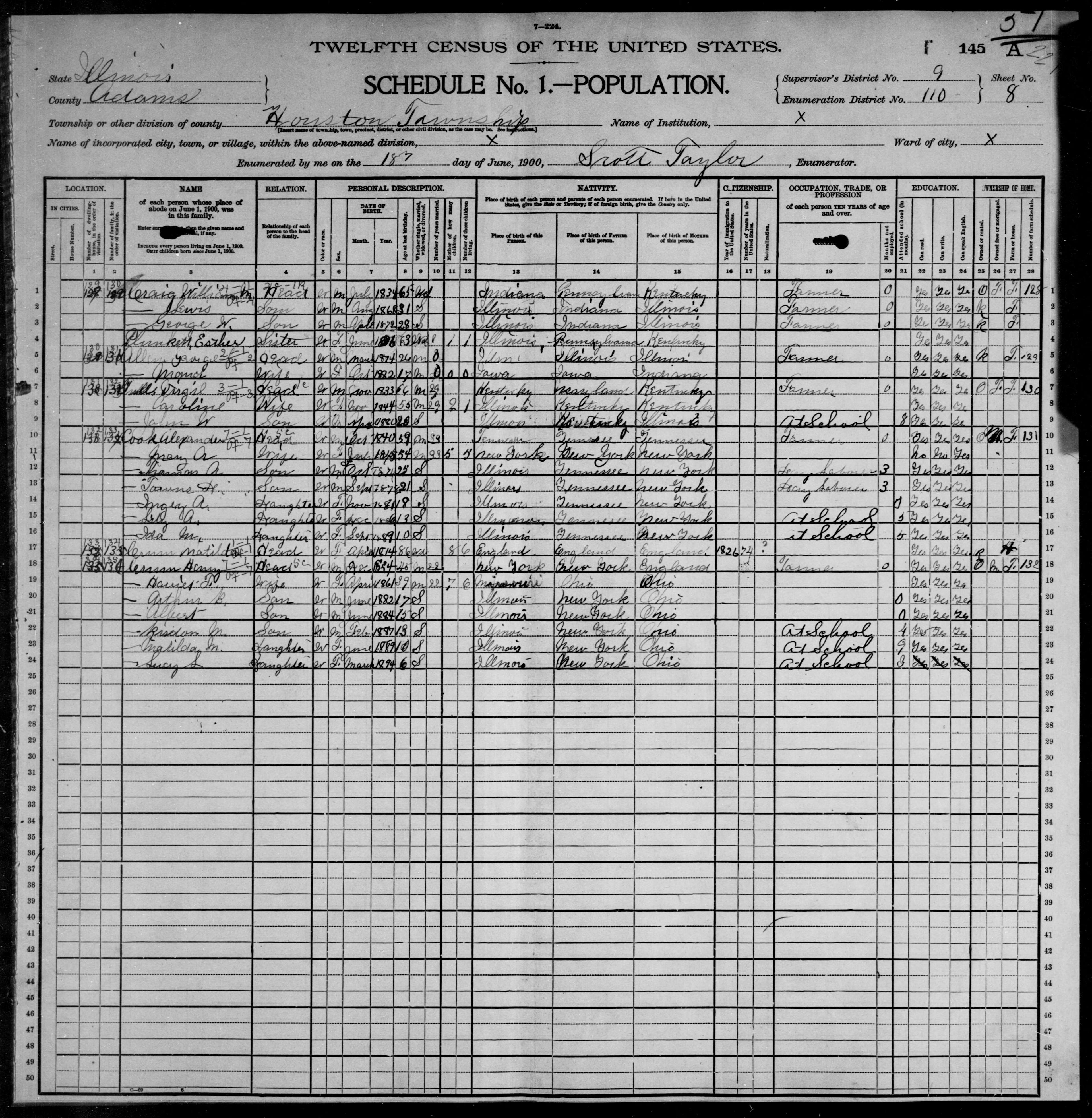
The census extract shows why context matters: a short mark in one column may mean something different from the same mark elsewhere. Preserve headings and surrounding rows while reviewing. For Excel conversion, favor a legible handwritten source over a tightly cropped image that hides the column definitions.
How to convert a handwritten table to Excel step by step
Use the handwriting OCR tool to move a handwritten table to Excel in three steps: upload the page, recognize the handwritten table, and review the grid before exporting. The Excel option appears only when the result contains a table.
1. Upload the handwritten table image or PDF
Drag your handwritten table into the upload area, or select browse files. Choose PDF, JPG, PNG, WebP, or HEIC. Keep the complete handwritten table, including its headers, in view. Upload a PDF alone rather than mixing it with images. Check that the preview contains the correct page before you start conversion.

2. Recognize the handwritten table and inspect the grid
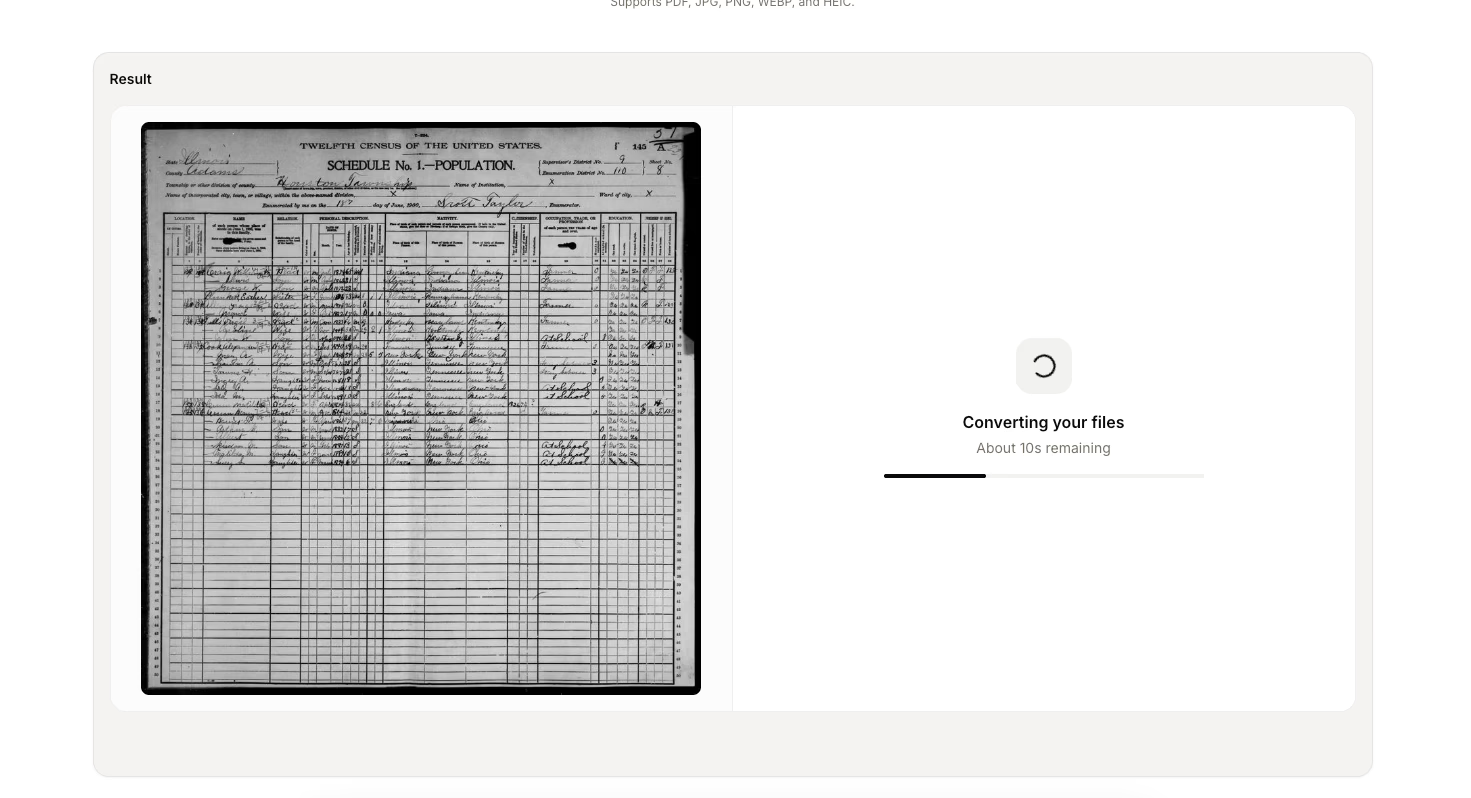
After uploading, select Convert. Keep the page open while the handwritten table is processed. When the result appears, compare the column count with the original handwritten table. Check wrapped cells, blank entries, and repeated page headings before treating the result as a complete grid.
3. Check the handwritten table and download Excel
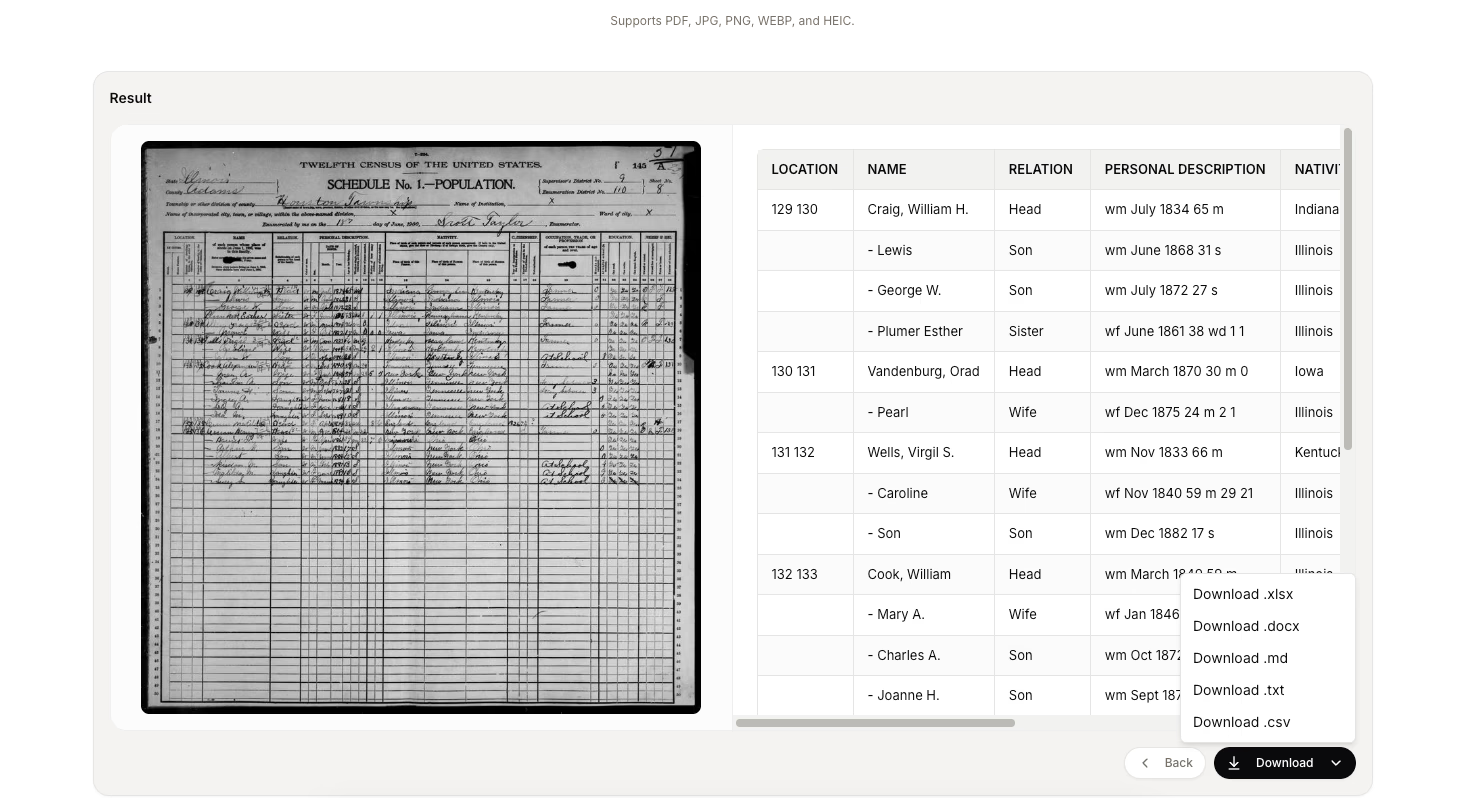
Review the original handwritten table beside the recognized result. Check row alignment, leading zeros, and amounts, then open Download and choose Download .xlsx. A handwritten table to Excel export requires a detected table; if the result is plain text, inspect the source and recognition result before continuing. Open the Excel workbook for a final check.
A handwritten table to Excel review example
Use the small teaching example below to practice review. It is illustrative data, not a transcription of the historical image or a measured OCR result. Imagine that a handwritten stock notebook contains these three columns. The checked version preserves identifiers as written and keeps a blank quantity visibly unresolved.
| Item ID | Description | Quantity |
|---|---|---|
| 0051 | Notebooks | 12 |
| 0052 | Pencils | [blank] |
| 0053 | Folders | 7 |
- Keep 0051 as an identifier. Dropping the leading zeros changes the recorded value.
- Do not turn a blank quantity into zero. A blank may mean missing information.
- Check each quantity against its own row, especially where handwriting crosses a grid line.
- Distinguish a decimal point, a comma, and a stray pen mark before normalizing numeric values.
In Excel, compare the first, middle, and last rows before sorting. Then inspect every handwritten identifier and amount. A correctly calculated total can still hide two values placed in the wrong rows. Preserve the original order in one Excel sheet so you can trace corrections after making a sorted working copy.
Export your handwritten table to Excel
In Cursive Reader, open the download menu and choose the .xlsx option when a table has been detected. Spreadsheet options depend on the recognized result containing a table. The current Excel export takes the first detected table into a worksheet, so do not assume a multi-table page becomes an Excel workbook with a separate sheet for every table.
Open the workbook in Excel and check the headers, row count, and cells again. The exported Excel cells contain text values. Decide which columns should become numbers or dates, and keep identifiers as text. Apply number formats only after checking leading zeros, decimal conventions, and units. Save your checked Excel workbook under a new filename.
The source remains your reference
Handle complex layouts separately
A handwritten table to Excel workflow needs extra review for merged headings, ditto marks, crossed-out values, or several tables on one page. Do not assume that color, cell merging, or spreadsheet formulas will match the paper. Rebuild complicated headers in Excel when necessary, while retaining a source transcript of the visible entries.
For a long scan, the handwritten PDF guide explains page-by-page review. If the grid is readable but a word is doubtful, use the repeated-letter comparison method before making a guess. These checks are part of converting data, not just a final cosmetic cleanup.
Start with a clear image of your table
Review the handwritten rows and recognized columns before exporting the result to Excel.
Frequently asked questions
- Can I convert a handwritten table to Excel from a photo?
Yes, when the handwriting is readable and the result is recognized as a table. Include all handwritten rows and headers in a straight, sharp photo. Review the cells before exporting to Excel; an unclear source can still produce shifted columns or incorrect numbers.
- Why is handwritten table to Excel export missing?
Cursive Reader shows Excel and CSV options when it detects a table in the result. A plain paragraph does not enable Excel export. Check the handwritten entries and recognized structure; you may need a clearer capture or a manual reconstruction in Excel.
- Does handwritten table to Excel conversion preserve formulas?
Do not assume that it does. Review the exported values and create or verify formulas in Excel separately. Handwritten totals and calculation notes should be checked against the original rather than treated as functioning spreadsheet formulas.