5 min read
How to Convert Handwriting to Word
Convert handwriting to Word from photos or PDFs. Review the recognized text, download a DOCX file, and format the checked document.
On this page
To convert handwriting to Word, upload a clear image or PDF, review the recognized text, then download a .docx file. Word gives you a convenient place to edit the transcription. Keep the handwriting image alongside it so a clean document does not hide an uncertain name or missing line.
Prepare handwriting for a readable Word document
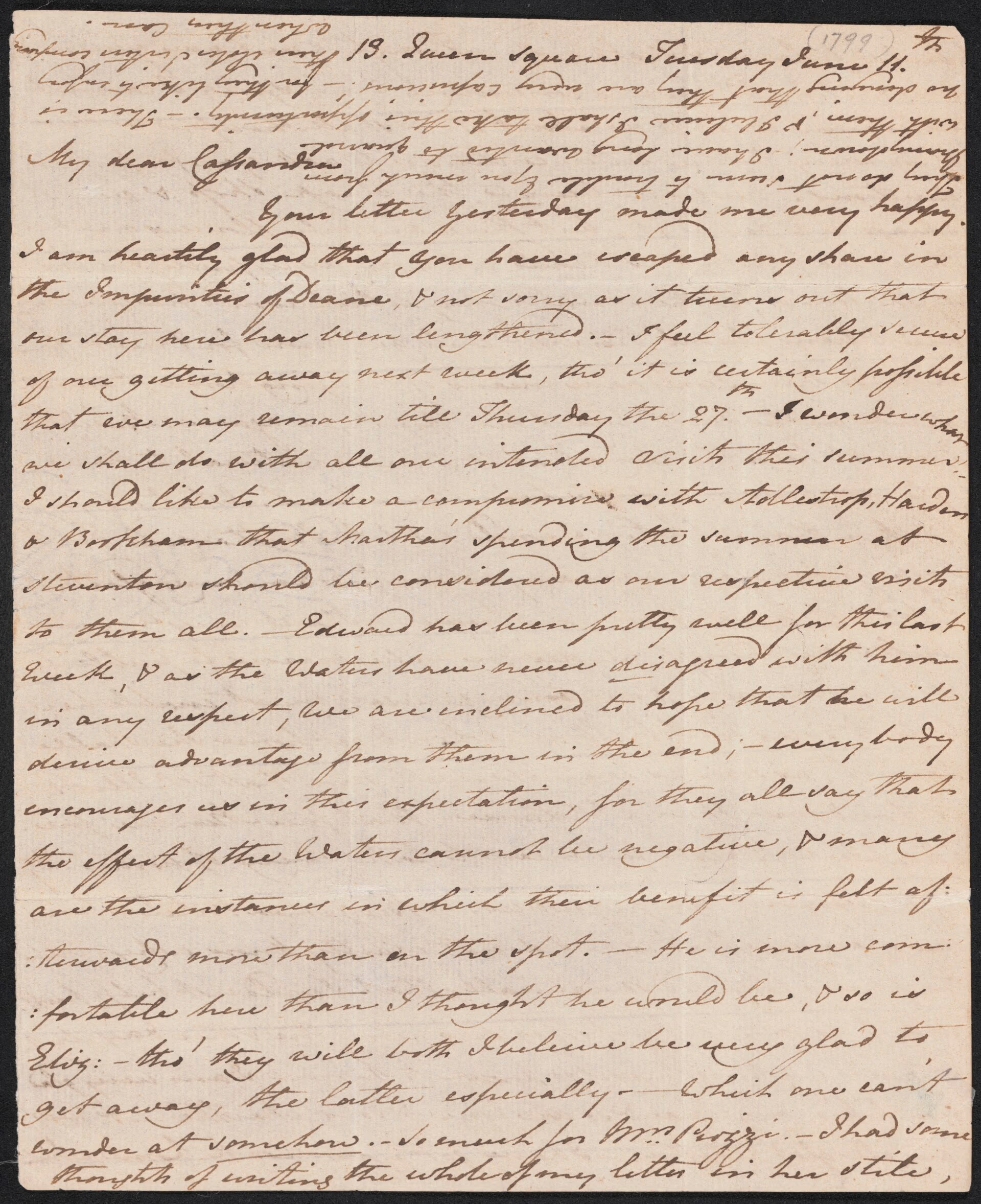
Photograph the handwriting straight on, with the entire page visible. Check small writing before uploading. Shadows, cropped lines, and a blurred image reduce the evidence available for recognition. For several pages of handwriting, preserve their order in one PDF or an ordered set of images. Upload a PDF alone rather than mixing it with image files.
How to convert handwriting to Word step by step
Use the handwriting to text converter to make a draft, then choose Word as the download format. The same workflow accepts print handwriting, cursive, and pages containing both.
1. Upload the handwriting image or PDF
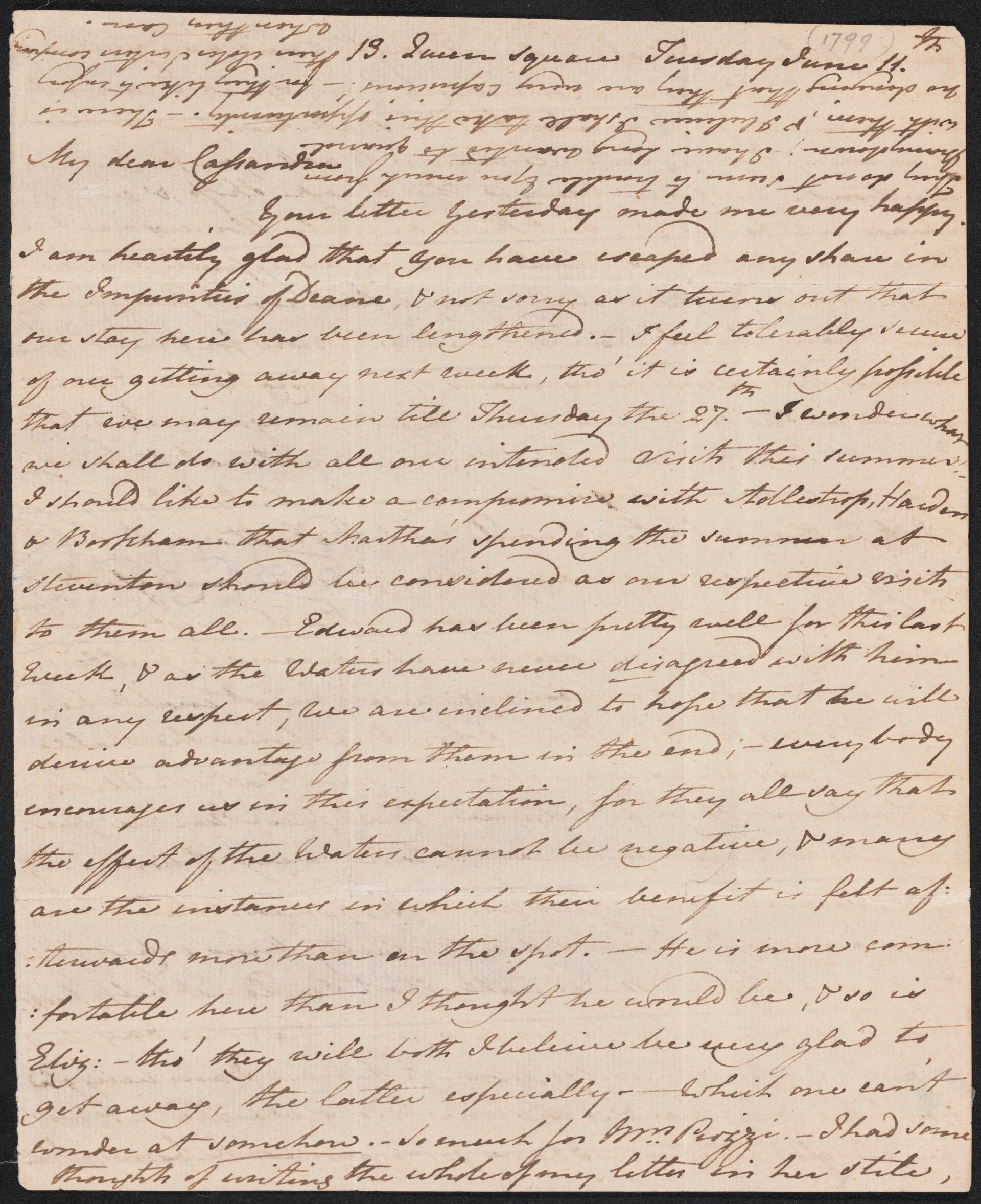
Drag your handwriting file into the upload area or select browse files. Supported formats include PDF, JPG, PNG, WebP, and HEIC. Wait for the filename and preview to appear. Remove an incorrect file before starting; this is easier than finding an unrelated page in the Word download later.

2. Convert and check the handwriting
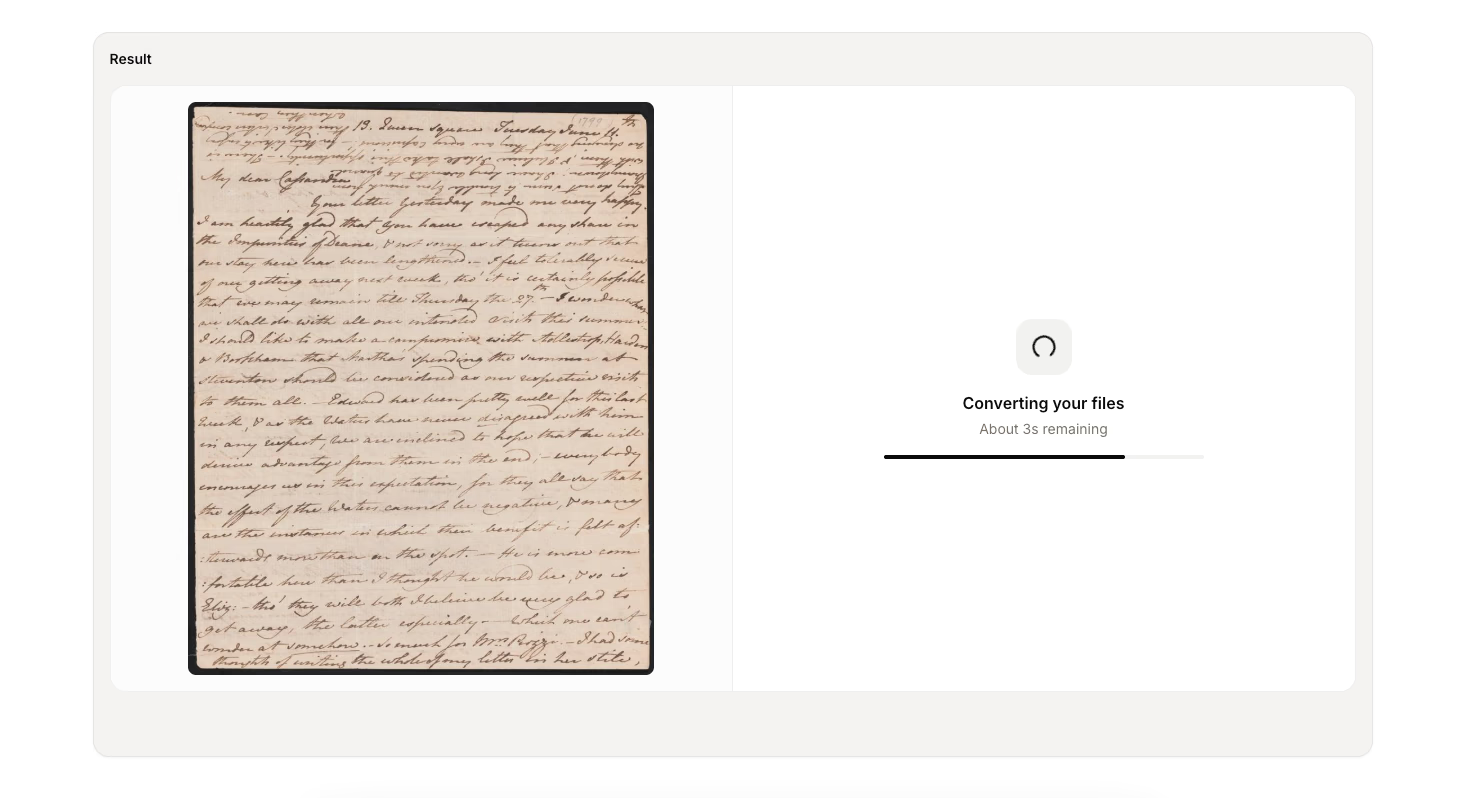
Select Convert once uploading finishes. Keep the page open while handwriting recognition runs. When the result appears, compare the image with the draft. Check headings, names, numbers, and sentence endings before exporting to Word. In longer documents, use the page controls to check every handwriting page in sequence.
3. Download Word and review the document
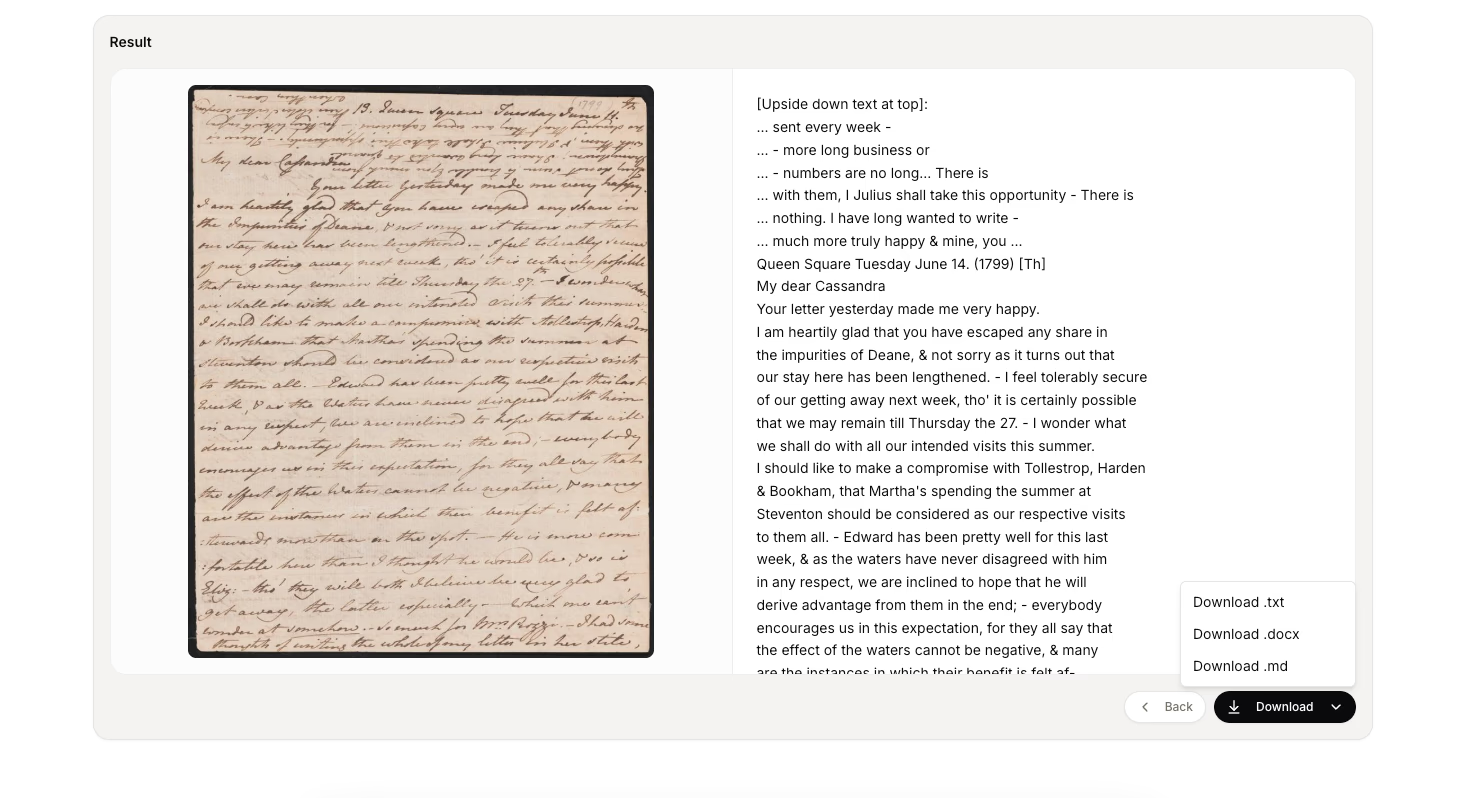
Open Download and choose Download .docx. Open the file in Word and check the first and last paragraph. Regular handwriting results also offer TXT and Markdown. Keep the original handwriting scan with the Word file so corrections remain traceable.
Check the text before styling it in Word
Imagine an illustrative note reading “Call Jo, 10:30, room 204.” A neat Word document could still contain “Joe” or room “209.” Compare those details with the handwriting before making the page look finished. The example below is a review exercise, not a recorded OCR result.
| Detail | Check against the handwriting | Then edit in Word |
|---|---|---|
| Jo or Joe | Look for a final letter rather than expanding a familiar name | Keep the confirmed spelling |
| 10:30 | Check the colon and each handwritten digit | Apply a consistent time style if needed |
| Room 204 | Compare the last digit with other examples on the page | Keep uncertain digits marked until checked |
Format the checked Word file
The current Word export turns lines of recognized text into paragraphs. It does not recreate the handwriting, paper layout, or original font. Apply Word headings and lists after checking the transcription. Add page labels when they help connect the text to a particular handwriting image.
Tables need a separate check
Turn handwriting into a Word draft
Upload a clear page, review the text, and download a document you can edit in Word.
Frequently asked questions
- Can I convert cursive handwriting to Word?
Yes. Upload a clear cursive page and compare the recognized text with the handwriting before downloading Word. Connected letters and unfamiliar names can need correction.
- Will Word preserve the original handwriting layout?
The export creates editable paragraphs from the recognized text. It does not reproduce the handwriting or guarantee the original layout. Use Word formatting tools after checking the content.
- Can I use a handwriting PDF instead of a photo?
Yes. Upload the PDF by itself, review its pages in order, then download the result. Keep the handwriting PDF with the Word document for future reference.