
Scan Cursive Pages into Text
Use Cursive Reader as a cursive scanner for phone photos, scanned pages, or PDFs. Upload a handwritten page and turn cursive writing into clear, editable text you can review and reuse.
Built for scanning handwritten pages
Cursive Reader works well with captured images, scanner output, or uploaded PDFs so cursive pages are easier to turn into usable digital text.
Phone photo uploads
Take a picture of a handwritten page and upload it straight from your phone. No separate desktop scanner is required.
Scans or PDF files
Use scanner app exports, scanned images, phone generated PDFs, or standard document files in one simple workflow.
Single page workflow
Process one handwritten page at a time or move through longer documents with a consistent page by page workflow.
Export ready output
Use the extracted text right away or export it as TXT, Markdown, Word, or Excel depending on your workflow.
How It Works
Scan cursive pages then turn them into text in three simple steps.
Capture the page
Take a photo with your phone or scan the handwritten page, then upload the image or PDF to begin.
Process the file
Cursive Reader analyzes the uploaded page and extracts the handwritten content into clear digital text.
Review the result
Check the result, copy what you need, or download it as TXT, Markdown, Word, or Excel.
Where a Cursive Scanner Is Useful
Use Cursive Reader to scan cursive pages when handwritten content needs to be captured quickly and turned into digital text.
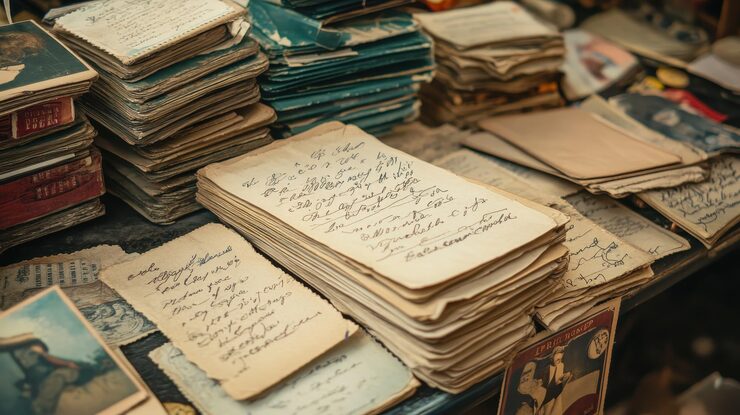
Family letters
Scan handwritten letters or journals into digital text so family memories are easier to keep, search, and revisit later.

Study notes
Capture handwritten notes from class and turn them into text that is easier to organize, review, and save for later.

Meeting records
Scan handwritten meeting notes into digital text so they are easier to store, share, and follow up on with your team.

Forms and receipts
Capture handwritten details from forms or receipts so the information is easier to reuse in records, documents, or spreadsheets.
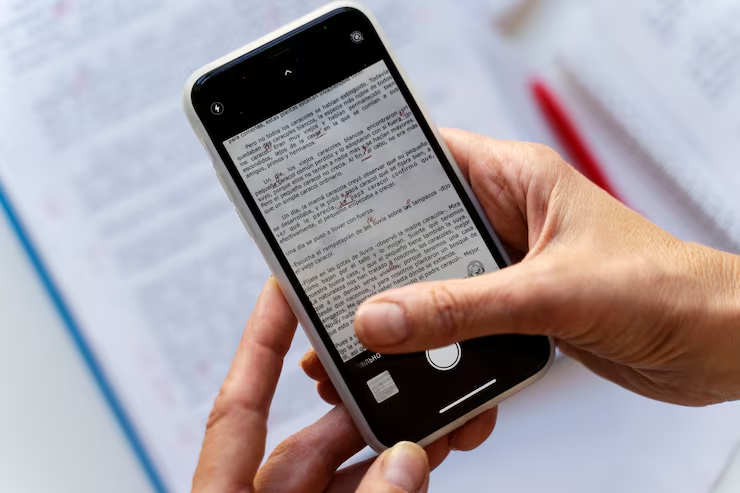
Mobile photos
Use phone photos of cursive pages as quick scans, then turn them into readable digital text without extra equipment.
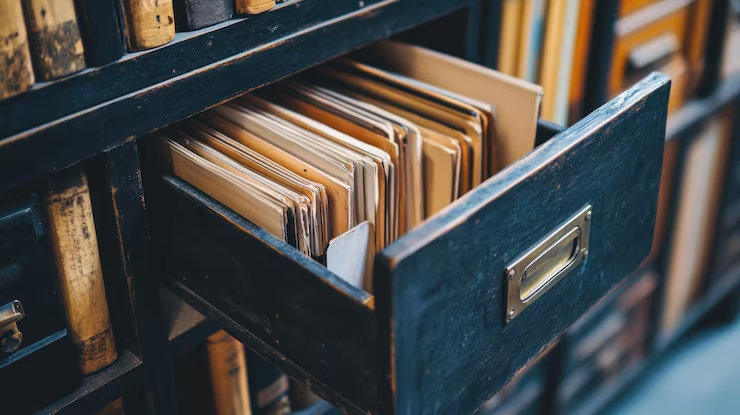
Historical documents
Scan older handwritten pages into searchable text so they are easier to preserve, review, and work with over time.
Tips for better scanning results
A well captured page makes a big difference in how cleanly handwritten content can be processed.
- Keep the page flat and hold the camera directly above it for a cleaner capture.
- Use even lighting and avoid shadows or glare across the document.
- For small or dense handwriting, move closer so the page fills more of the frame.
- Sharper scans usually help with difficult handwriting or faint ink.
- For multi page documents, combine your scans into one PDF before uploading.
Frequently Asked Questions
Common questions about using Cursive Reader as a cursive scanner.
Scan cursive pages then turn them into editable text.
Upload a photo or scan and get digital text from cursive handwriting that is easier to copy, save, and export.